
Your radio station, fully automated, live-ready and built to run lean.
Launch an internet radio station in minutes. SmartStream gives you Icecast and SHOUTcast streaming, an intelligent AutoDJ, scheduling, jingles, ads, listener analytics, a browser-based DJ studio and your own Roku channel, all in one panel. It keeps working when nobody is logged in.
Plays muted — tap the speaker icon for sound.
Built like a real radio station
An AutoDJ that thinks like a program director
SmartStream's smart rotation doesn't just shuffle. It keeps artists and songs from repeating too soon, and those gaps grow as your library does. It favours songs that haven't played recently, and it learns from your audience: songs that keep listeners tuned in play more, and songs that make them leave or get skipped play less.
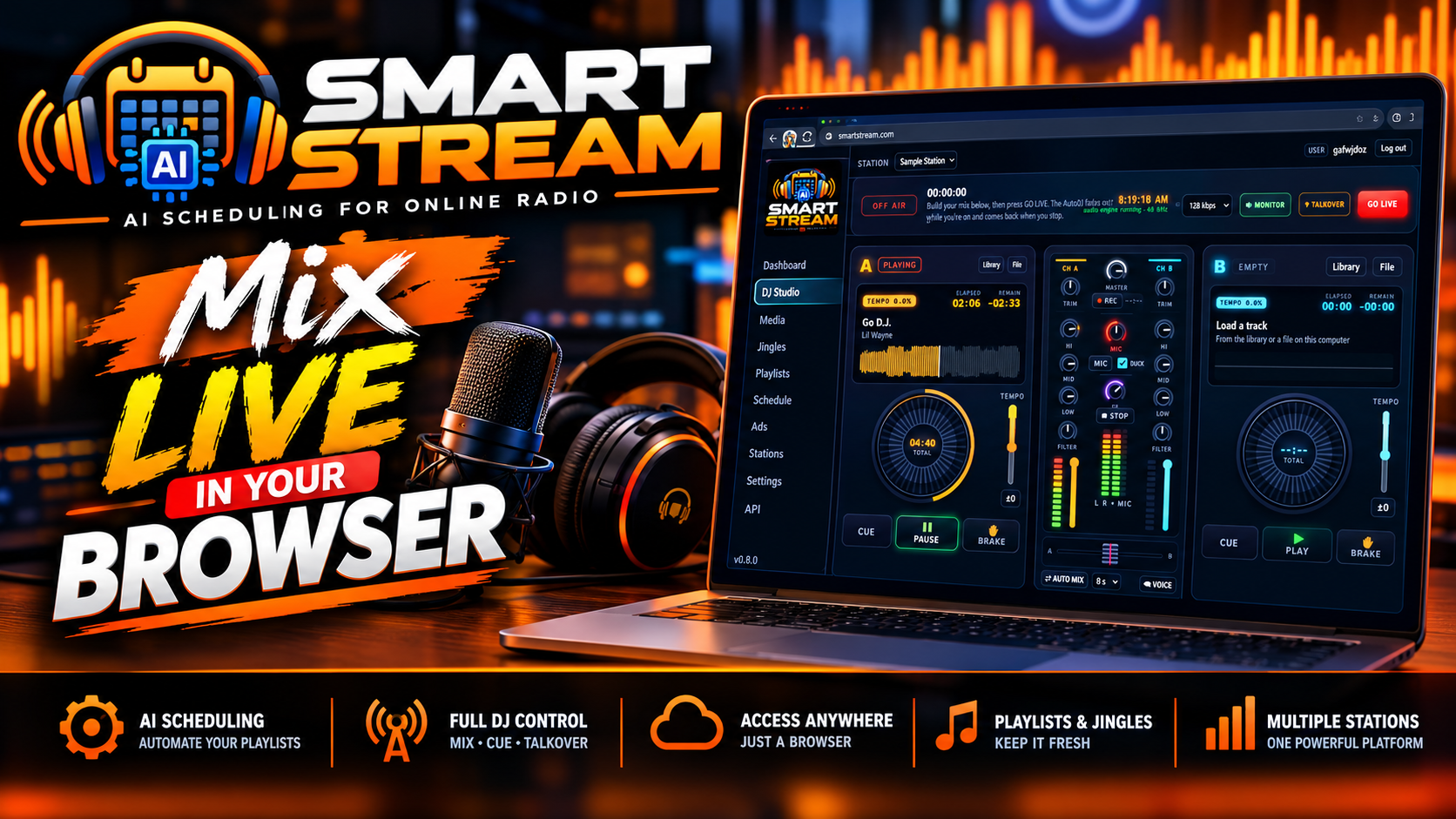
Go live from your browser, no software needed
The built-in DJ Studio has two decks, a mixer with EQ, filter and crossfader, a mic for talking over the music, and sound-effect pads. Click Go Live and you're on air. When you sign off, the AutoDJ picks up where you left off.
Built to run lean
The streaming engine is compact compiled code, using about 1% CPU and 10 MB of memory per station. That means smooth, stable streams and room to grow.
Recently added to SmartStream
Your station on Roku, listener analytics with maps, public now-playing data and a panel that works on your phone.
Roku channel builder
Beta- Give each station its own Roku app, built from a card on the Web Player page
- A now-playing screen with artist, title and album art, updated every 10 seconds
- Album art comes from the cover embedded in the track first, then an iTunes lookup, then your station logo
Listener analytics
New- Unique listeners, listening hours, average and peak audience, session lengths and busiest hours
- Countries and cities, a live "connected now" list and a map of your listeners, using a location database that updates weekly
- 400 days of history
Now-playing feed
New- A public nowplaying.json link for each station, plus album art images
- Use it to build your own widgets, apps and website displays
Custom stream URL
New- Point the web player and Roku app at an outside https stream instead of the station's own
- Built for ad networks that insert ads for each listener, such as AdTonos "Ads Replacement"
Schedule calendar
New- A week calendar with a colour for each show
- Sits alongside the list view and the clock editor, so you can see your whole week at a glance
Mobile & multilingual
New- A mobile-friendly panel with a slide-out menu on phones
- English, Spanish and French, chosen per account
Everything you need to run a real station
Streaming
- Icecast, SHOUTcast, or both at once, from the same station
- http:// and https:// on the same stream port, so your stream plays on secure websites without mixed-content errors
- Free Let's Encrypt certificates, set up and renewed automatically
- Listener counts, now playing and server status at a glance
- Connect any broadcasting software (BUTT, Mixxx, SAM Broadcaster, RadioBOSS and more) with the source details shown in your panel
AutoDJ
- 24/7 automated playback with smooth crossfades
- Smart rotation with "no artist repeat" and "no track repeat" rules. The panel shows how far apart your library can keep them
- Listener-aware ratings: every play is scored by listeners gained or lost and by skips
- Rotation insights show each track's chance of playing next, when it last played, and how listeners reacted
- General playlists play in order, perfect for countdowns and fixed sets
- Playlist weighting lets you decide how often each playlist airs
Media library
- Drag-and-drop uploads with automatic re-encoding to your station's bitrate and sample rate, for consistent sound and less buffering
- Supports MP3, FLAC, OGG, Opus, WAV, M4A/AAC and more
- Drag-and-drop playlist builder with search and one-click "Add all"
Scheduling
- Clockwheels: hour templates with song, jingle, sweeper and ad-break slots
- Weekly clock grid: paint different clocks across the 7×24 week
- Calendar shows: one-off or weekly programmes that run a playlist or clock
- A default clock for any hour with nothing scheduled
- Colour-coded week calendar, list view and clock editor
- Song requests from your listeners
- Everything runs in your station's own time zone
Station imaging
- Jingle categories: Station IDs, Sweepers, Liners, Promos and Bumpers
- Sweepers play over song intros while the music ducks underneath, just like FM radio
- Simple rules: "a jingle every N songs" and "a sweeper every N songs"
Advertising
- Built-in DAAST / VAST audio ad support. Paste your ad tag and ad breaks fill automatically
- Full tracking: impressions, quartiles, completes and skips
- Ad-break slots placed exactly where you want them in your clockwheels
Go live from any browser
Click Go Live and you're on air. When you sign off, the AutoDJ picks up where you left off.
- Two decks with waveforms, cue, pitch, brake and loading from your library
- Mixer with trim, 3-band EQ, filter, channel faders and a proper left/right crossfader
- Auto Mix: hands-free crossfading between decks, refilling from your library
- Mic talk-over with level meters
- 15 sound-effect pads, including air horn, siren, scratch, rewind, drum roll and more, each with a keyboard shortcut. Swap any pad for your own uploaded sounds
- Voice tracking: record a voice break for the AutoDJ to play
- Fire your station imaging straight from the studio
- Shout-outs ticker that scrolls the places your current listeners are tuning in from
- Weather strip (now plus 3 days) that also shows government weather alerts
- A warning before you leave the page while you're on air
Resell radio hosting under your own brand
Accounts & API
- Admin, reseller and customer accounts with per-account limits on stations, listeners, bitrate and disk space
- Resellers create and manage their own customers inside their limits
- Full REST API for accounts, stations, playlists, AutoDJ control and more
WHMCS module included
- Automatic setup, suspend, unsuspend, upgrades and termination
- Customer and reseller plans
- One-click login from the WHMCS client area straight into the radio panel
- Live station status in the client area
- Welcome emails and 16 ready-made help articles
Backups & restores
New- Back up to any S3-style storage: AWS, Cloudflare R2, Backblaze B2, Wasabi, DigitalOcean Spaces or MinIO
- Media syncs file by file and is never zipped, so after the first run only new files upload
- Deleted files are kept for a set number of days
- Server snapshots and single-account snapshots, daily or weekly
- Restore the whole server, or one account (replacing it or as a copy)
- Moving to a new server is just a restore from the same bucket
Pick your plan
Every plan includes the AutoDJ, scheduling, the DJ Studio and audio ads.
| Free Trial | Starter | Pro | Premium | |
|---|---|---|---|---|
| Listeners | 50 | 50 | 100 | 500 |
| Max bitrate | 128 kbps | 128 kbps | 320 kbps | 320 kbps |
| Disk space | 10 GB | 10 GB | 25 GB | 50 GB |
| Icecast & SHOUTcast | ✓ | ✓ | ✓ | ✓ |
| AutoDJ with AI smart playlist | ✓ | ✓ | ✓ | ✓ |
| No track / artist repeat rules | ✓ | ✓ | ✓ | ✓ |
| Browser DJ Studio | ✓ | ✓ | ✓ | ✓ |
| Ads (DAAST/VAST) | ✓ | ✓ | ✓ | ✓ |
| Price | Free 15 days, cancels automatically if not upgraded | $7/mo | $12/mo | $18/mo |
| Start Free Trial | Order Starter | Order Pro | Order Premium |
Prices shown monthly. Need reseller accounts to host your own customers? Ask us about reseller plans.
Help guides and answers
Everything from your first login to going live, running ads and reselling. Click a guide to open it.
SmartStream is your online radio control panel. It runs your stream servers (Icecast and/or SHOUTcast), keeps music playing 24/7 with the AutoDJ, and lets you go live from your browser or your own DJ software. This guide takes you from a new account to a station that is on air.
What you need
- Your SmartStream username and password (in your welcome email), or access to your client area.
- Some music files: MP3, FLAC, OGG, Opus, WAV, M4A/AAC, WMA or AIFF.
- A modern browser. Chrome or Edge on a computer is recommended for the DJ Studio.
Step 1: Log in
Go to https://smartstream.myautodj.com/ and sign in, or open your service in the client area and click Login to Radio Panel to sign in with one click. See Logging in to Your Radio Panel for details.
Step 2: Create your station (if you don't have one yet)
Most plans come with a station already created. If the Dashboard says No stations yet, click Create a station, give it a name, and click Save station. The defaults (Icecast-KH, 128 kbps, 44100 Hz, stereo) suit most stations. See Creating and Configuring a Station.
Step 3: Upload your music
Open Media and drag your audio files onto the upload box. Each file is converted to your station's bitrate and sample rate automatically. When a track's status shows ready, it can be played. See Uploading Music to the Media Library.
Step 4: Build a playlist (optional)
The AutoDJ can play your whole library in smart rotation without any playlists. To control what plays, open Playlists, create a playlist and drag tracks into it. See Building Playlists.
Step 5: Start the AutoDJ
Open the Dashboard and press PLAY. Deck A shows the song on air, Deck B shows what's coming next. Your station keeps playing even when you close the browser.
Step 6: Listen and share
On the Dashboard, scroll to Servers and click the Listen URL to hear your stream. To put a player on your website, open Player and copy the embed code. See Embedding the Web Player on Your Website.
Where to go next
- Jingles: add station IDs, sweepers and promos to brand your sound.
- Schedule: run shows at set times and build clockwheels.
- DJ Studio: mix and talk live from your browser.
- Analytics: see how many people listen and where they are.
Need help? Open a support ticket and we'll help you get on air.
There are two ways to reach your SmartStream panel.
Option 1: One-click login from the client area
- Log in to the client area and open Services > My Services.
- Click your SmartStream service.
- Click Login to Radio Panel. The panel opens in a new tab and you're already signed in.
The same page shows each station's status (On air, Off air or LIVE), the number of listeners, the song playing now and your stream URL.
Option 2: Log in directly
- Go to https://smartstream.myautodj.com/.
- Enter the username and password from your welcome email.
Change your password
- In the panel, open Settings.
- Under Change password, enter your current password and a new one (at least 8 characters).
- Click Update password.
We recommend changing the password from your welcome email after your first login. One-click login from the client area keeps working after you change it.
Change the panel language
Under Settings > Language, choose English, Spanish or French, or leave it on Automatic (browser language). Click Save language.
Check your plan limits
The Account box on the Settings page shows your limits: number of stations, listeners per station, maximum bitrate and disk space.
Using the panel on a phone
The panel works on phones and tablets. Tap the menu button at the top left to open the navigation.
A station is one radio channel: its own stream servers, music library, playlists and schedule. You manage stations on the Stations page.
Create a station
- Open Stations.
- Fill in the New station form on the right (the settings are explained below).
- Click Save station. The stream servers start within a few seconds.
To change a station later, click it in the table, edit the form and save. The number of stations you can create depends on your plan.
Station settings
| Setting | What it does |
|---|---|
| Name | Your station's name. It also appears in the Icecast and SHOUTcast directories if you list your station. |
| Server software | Icecast-KH, SHOUTcast DNAS 2, or Both. Choose Icecast-KH unless you need SHOUTcast (for example, for the SHOUTcast directory). With Icecast, live DJs take over from the AutoDJ automatically. |
| Bitrate (kbps) | Stream quality. 128 kbps is a good balance. Higher sounds better but uses more of your listeners' data. Your plan may cap the maximum. |
| Sample rate | 44100 Hz suits almost all music. Use lower rates only for talk stations at low bitrates. |
| Channels | Stereo for music. Mono for speech-only stations at low bitrates. |
| Max listeners | How many people can listen at the same time. Your plan sets the upper limit. |
| Crossfade (ms) | How long songs overlap as one ends and the next begins. 5000 ms (5 seconds) is the default; 0 turns crossfading off. |
| Station ID every N | Plays a jingle after every N songs (0 = off). See Jingles, Sweepers and Station Imaging. |
| Sweeper every N | Mixes a sweeper over the start of every Nth song (0 = off). |
| Time zone | Your schedule runs in this time zone. Set it to your local zone before you create shows. |
| Normalize loudness of uploads | Evens out volume so quiet and loud tracks sound similar. Leave it on unless your files are already mastered for broadcast. |
The Stations table
The table lists each station's servers, ports, quality, listener limit, CPU and RAM use and status. A station marked suspended is off air until the service is restored.
The Media page is your station's music library. Everything the AutoDJ plays comes from here.
Upload files
- Check the station picker at the top of the page shows the right station.
- Open Media.
- Drag audio files onto the box that says Drop audio files here, or click it to choose files.
- Wait for each track's status to change from queued / processing to ready. The page updates on its own.
Supported formats: MP3, FLAC, OGG, Opus, WAV, M4A/AAC, WMA and AIFF. You can upload many files at once.
Each file is converted to your station's bitrate, sample rate and channels (shown under the upload box), and its loudness is evened out if your station has Normalize loudness turned on.
Manage tracks
- Search: type in the search box to filter by title, artist or album.
- Play next: adds the track to the requests queue so it plays after the current song.
- Edit: correct the title and artist. This is what listeners see as "now playing".
- Delete: removes the file from the library and from every playlist.
Disk space
The space used and your plan's limit are shown next to the search box. If you reach the limit, delete tracks you no longer need or upgrade your plan from the client area.
- Tag your files with title and artist before uploading. The AutoDJ uses the artist to avoid playing the same artist twice in a row.
- Upload the best quality you have. Converting from a high-quality file sounds better than from a low-bitrate MP3.
- A track that shows error couldn't be read. Try a different copy or format.
Jingles and station IDs are uploaded separately on the Jingles page, so they don't play as songs.
Playlists tell the AutoDJ what to play. You don't need any: with no active playlist, the AutoDJ plays your whole library in smart rotation. Create playlists when you want to control the mix, for example a "Current hits" list that plays more often than "Classics".
Create a playlist
- Open Playlists.
- In the left column, type a name under New playlist name, choose a type (see below) and click Add.
- Click the playlist to open it in the middle column.
- Drag tracks from the Library column on the right into the playlist, or click + on a track. + Add all adds every track shown in the library (it respects your search).
- Drag tracks up and down to reorder them, then click Save order.
Playlist types
| Type | How it plays | Good for |
|---|---|---|
| Smart rotation | Picks songs at random, weighted so that songs which haven't played for a while come up sooner, the same song or artist isn't repeated too soon, and songs that make listeners tune out or get skipped play less often. | Your main music rotation. |
| General (in order) | Plays top to bottom in the order you set, then starts over. | Countdowns, fixed sets, audiobooks. |
| Scheduled only | Never plays on its own. Plays only when a show on the Schedule or a clockwheel slot uses it. | Specialty shows, holiday music, weekend mixes. |
Weight and Active
- Active: only active playlists play. Untick it to pause a playlist without deleting it.
- Weight (1 to 10): how often this playlist is chosen compared with your other active playlists. A playlist with weight 10 plays about twice as often as one with weight 5.
Repeat rules
Click Edit on a playlist to set:
- No track repeats: how many songs must play before the same song can play again.
- No artist repeats: how many songs must play before the same artist can play again.
Each rule can be Automatic (scales with the playlist size; recommended), Off, or Custom. The dialog shows the largest gaps your library can support. If a rule can't be met, the artist rule is relaxed first, then the track rule, so your station never goes silent.
Rotation insights
At the bottom of a smart rotation playlist, open Rotation insights to see the chance each track has of playing next. It's a quick way to check that the rotation behaves the way you expect.
The Dashboard is laid out like a DJ console. It shows what's on air, what's next, and the controls for the AutoDJ, the automatic DJ that keeps your station playing 24/7.
The decks
- Deck A (On air): the track playing now, with elapsed and remaining time and a waveform. Shows LIVE INPUT when a live DJ is connected.
- Deck B (Next up): the track the AutoDJ has cued next, and when it starts.
AutoDJ controls
| Button | What it does |
|---|---|
| PLAY | Starts the AutoDJ. It keeps running after you close the browser, and starts again on its own if the server restarts. |
| STOP | Stops the AutoDJ. Your station goes silent unless a live DJ is connected. |
| NEXT | Crossfades to the cued track now (skips the current song). |
| PLAY NOW (Deck B) | Same as NEXT: starts the cued track straight away. |
The mixer
- ON AIR lights up when your stream is broadcasting. If a scheduled show is running, its name appears next to it; click it to open the Schedule.
- Listeners: the number of people listening now.
- Crossfader slider: sets how long songs overlap, from 0 to 15 seconds. The change applies from the next transition.
- Sampler pads (ID, LINER, PROMO, BUMPER): queue a random jingle of that type to play next. A pad is greyed out if you haven't uploaded that type yet or the AutoDJ is stopped.
Requests queue
Under Deck B is the requests queue. Tracks in it play before anything else, in order. Add tracks with Play next on the Media or Jingles page, or with the sampler pads. Click × to remove one.
Recently played
Lists the tracks that played most recently.
Servers: your stream URLs and encoder details
The Servers section has one card per stream server (Icecast-KH and/or SHOUTcast DNAS):
- Listeners (and peak).
- Listen URL and HTTPS URL: the addresses people use to tune in. Use the HTTPS URL on secure (https) websites. Both use the same port.
- Source, Host : port, Mount / user, Password: the settings for connecting live DJ software. Click (show) to reveal the password. See Going Live with Your Own Broadcast Software.
- Restart / Stop / Start: control the stream server itself. Restarting briefly disconnects your listeners, so only do it when troubleshooting.
The status pill reads on air when audio is being sent, running when the server is up but nothing is sending, and stopped when the server is off.
Usage
The Usage box at the top shows your listeners right now and the disk space your music uses.
Directory listing
Shows whether your station is listed in the Icecast and SHOUTcast directories. See Listing Your Station in the Icecast and SHOUTcast Directories.
You can broadcast live from any software that supports Icecast or SHOUTcast, such as BUTT, Mixxx, SAM Broadcaster, RadioDJ, VirtualDJ or OBS with an Icecast plugin. Prefer to broadcast from your browser? See Using the Browser DJ Studio.
Find your connection details
- Open the Dashboard and scroll to Servers.
- On the server card you want to broadcast to, note the Host : port, Mount / user (Icecast) or Stream ID (SHOUTcast), and click (show) next to Password.
Icecast stations (recommended)
| Server type | Icecast (sometimes "Icecast 2") |
| Address / host | The host shown on the card (e.g. smartstream.myautodj.com) |
| Port | The port shown on the card (e.g. 8000) |
| Mount point | /stream (as shown on the card) |
| Username | source |
| Password | Your source password from the card |
| Format / bitrate | MP3 at your station's bitrate (e.g. 128 kbps, 44100 Hz, stereo) |
When you connect, you take over from the AutoDJ automatically. When you disconnect, the AutoDJ comes back on its own. You don't need to stop anything first.
SHOUTcast stations
SHOUTcast accepts only one source at a time, so press STOP on the Dashboard to stop the AutoDJ before you connect, and press PLAY again when you finish.
| Server type | SHOUTcast v2 (or SHOUTcast v1 for older software) |
| Address / host | The host shown on the card |
| Port | v2: the port shown on the card. v1: the port given in brackets in the Source line ("or v1 on port …"). |
| Stream ID | 1 (v2 only) |
| Password | Your source password from the card |
Example: BUTT (Broadcast Using This Tool)
- Open Settings > Main > Server > ADD.
- Choose Icecast, and enter the address, port, password, mount (
/stream) and user (source). - Under Audio, choose MP3 and your station's bitrate.
- Click the play button in BUTT to connect. Deck A on the Dashboard shows LIVE INPUT.
Example: Mixxx
- Open Preferences > Live Broadcasting.
- Type: Icecast 2. Fill in host, port, mount, login (
source) and password. - Encoding: MP3, your station's bitrate.
- Turn on Live Broadcasting from the Options menu.
Song titles while live
Send "now playing" metadata from your software as usual. Listeners and the web player see your titles while you're live.
Can't connect?
- Check the password and mount point carefully (they're case sensitive).
- Make sure the server card shows running or on air, not stopped.
- On SHOUTcast, stop the AutoDJ first.
- Some networks block ports above 8000. Try another connection, such as a phone hotspot, to check.
The DJ Studio is a two-deck mixer that runs in your browser. You can mix tracks, talk on the mic, fire sound effects and go live on your station without installing any software.
Before you start
- Use Chrome or Edge on a computer for the best results. Other browsers may only be able to send uncompressed audio, which needs a fast, stable connection.
- Use headphones so your mic doesn't pick up the music.
- Allow microphone access when your browser asks.
- Keep the DJ Studio tab open while you're live. Closing it or navigating away ends your broadcast. Links on the Studio page open in a new tab for this reason.
Go live in four steps
- Open DJ Studio.
- Load a track on Deck A: click Library (your station's music) or File (a file on your computer).
- Choose the Quality (128 kbps is a good default) and press GO LIVE. The lamp turns to ON AIR and the timer starts. The AutoDJ fades out.
- Press PLAY on the deck. When you're done, press GO LIVE again to end. The AutoDJ comes back automatically.
Decks
- PLAY: play / pause. CUE: when stopped, sets the cue point; when playing, jumps back to it. RESTART: back to the start. BRAKE: slows to a stop like a turntable losing power.
- TEMPO: speed up or slow down by up to 8%. ±0 resets it. You can also drag the jog wheel sideways to nudge.
- Click the waveform to jump to that point in the track.
Mixer
- TRIM, HI, MID, LOW: input gain and EQ for each channel. Turn an EQ fully left to cut that band.
- FILTER: left for a low-pass sweep, right for a high-pass sweep.
- Channel faders and the crossfader (double-click to centre).
- AUTO MIX: when the playing deck nears its end, starts the other deck and crossfades to it, then loads a random library track on the free deck. Pick the crossfade length next to it. Press M to mix now.
- REC: records your mix to a file on your computer.
- MONITOR: hear the mix on your computer. Your own mic is never played back to you.
Microphone
- TALKOVER or MIC opens your mic. Or hold Space to talk and release to close it.
- With DUCK ticked, the music gets quieter while the mic is open.
- The MIC knob sets your mic level. Watch the MIC meter and keep it out of the red.
Effects, sound pads and imaging
- BEAT FX: echo, reverb or flanger on Deck A, Deck B, the master mix or your mic. TAP the beat to time the echo. F turns the effect on and off.
- Sound effects: pads for air horns, sirens and more. Click ✎ on a pad to rename it or upload your own sound. Esc stops all effects.
- Station imaging: one-click carts for your jingles. Upload them on the Jingles page.
Voice tracks (no need to go live)
Click VOICE, press Record, say your link, then click Upload & play next. The AutoDJ plays your recording after the current song. Great for pre-recorded links when you can't be live.
Shout-outs and weather
Under the GO LIVE bar, the SHOUT-OUTS ticker shows where your listeners are tuned in from right now, so you can say hello on air. If enabled, a weather strip shows current conditions and a 3-day forecast; click the location to change it for your station.
Keyboard shortcuts
| Space (hold) | Talk on the mic |
| Z / X | Play / pause Deck A / Deck B |
| Shift + Z / X | Restart Deck A / Deck B |
| M | Mix to the other deck now |
| F | Effect on / off |
| 1–=, Q–E | Sound effect pads |
| Esc | Stop all sound effects |
Jingles give your station its own sound. SmartStream plays them automatically between songs, or wherever your clockwheels put them.
Jingle categories
| Category | Typical use | How it plays |
|---|---|---|
| Station ID | "You're listening to…" | On its own, between songs |
| Sweeper | Short voice-over or effect | Mixed over the start of a song while the music dips |
| Liner | Slogan or short message | On its own, between songs |
| Promo | Show or event announcements | On its own, between songs |
| Bumper | Short transition into or out of a segment | On its own, between songs |
Upload jingles
- Open Jingles.
- Choose the Category for new uploads.
- Drag your files onto Drop jingles here. They're converted to your station's format, like music uploads.
Jingles are kept separate from your music, so they never play as songs.
Rotation rules
Set how often jingles play outside clockwheels:
- Jingle every N songs: plays one station ID, liner, promo or bumper after every N songs. The least recently played jingle is picked first, so they all get used.
- Sweeper every N songs: mixes a sweeper over the start of every Nth song.
Set a rule to 0 to turn it off, then click Save rules. Inside a clockwheel, jingles play only where the clock places them (see Scheduling Shows and Clockwheels).
Playing a jingle right now
- Click Play next on a jingle in the table to queue it after the current song (not available for sweepers).
- Or use the ID / LINER / PROMO / BUMPER pads on the Dashboard to queue a random jingle of that type.
- In the DJ Studio, the Station imaging carts play jingles instantly while you're live.
The Schedule page lets you program your station: run a playlist as a show at set times, and build clockwheels that shape each hour like a professional radio station.
What plays when
When the AutoDJ picks the next item, it checks in this order:
- Requests (tracks you added with Play next)
- Shows on the calendar / list
- The weekly clock grid
- The default clock
- Normal rotation (your active playlists, or the whole library)
Add a show
- In the Calendar view, click an empty hour. Or in the List view, click Add show.
- Give it a Title.
- Under Plays, choose a Playlist or a Clock.
- Choose One time (pick a date) or Weekly (pick days, a start date and an optional end date).
- Set Starts and Ends. An end time earlier than the start runs past midnight.
- Set the Priority (0 to 10). When shows overlap, the higher priority wins; on a tie, one-time shows beat weekly ones.
- Click Save show.
Tip: create the show's playlist as Scheduled only so its songs don't play outside the show.
Clockwheels
A clock is a template for one hour, made of slots that play in order:
- Song: one song from the playlist you choose.
- Jingle: one jingle of the category you choose. A sweeper slot plays over the next song.
- Ad break: ads from an ad source, with a maximum number of ads and maximum length (see Running Ads on Your Station).
The clock restarts at the top of every hour. If the hour runs long, the clock is cut; if it runs short, songs from the first song slot fill the gap.
Build a clock
- Switch to the Clockwheels view.
- Type a name (e.g. "Daytime"), pick a colour and click Add.
- Select the clock, then add slots with + Add slot. Drag slots to reorder them. The wheel shows how the hour is divided.
- Click Save clock.
Assign clocks to hours
- Under Weekly clock grid, choose a clock in Paint with.
- Click or drag across the hours where it should run. Choose Erase to clear hours.
- Click Save grid.
Hours with nothing assigned use the Default clock, if you've chosen one. Otherwise they play normal rotation.
Example: a simple hour
Station ID → Song (Hits) → Song (Hits) → Sweeper → Song (Classics) → Song (Hits) → Ad break → Liner → Song (Hits)…
The Dashboard shows the show or clock currently on air next to the ON AIR light.
Every station comes with a ready-made web player that shows the current song, album art and a visualizer. You can style it to match your site and embed it anywhere.
Customize the player
- Open Player.
- Change the settings on the left. The Preview on the right updates as you go.
- Click Save.
| Player style | Small bar for a header or footer, or Big with full cover art and visualizer. |
| Stream from | Which server the player uses, if your station has both Icecast and SHOUTcast. |
| Station name shown, Start volume | What the player displays and how loud it starts. |
| Colours | Background (or transparent), text and highlight colours. |
| Text | A Google font (e.g. Montserrat:600) or a font already on your site, text size, and scrolling for long titles. |
| Cover art | A link (https) to your logo, square works best. Choose circle, square or animated, and whether to always show your logo instead of album art. |
| Visualizer | Real-time, animated or off. Safari and iPhones/iPads always show the animated style. |
| Advanced | How often the song title refreshes, an optional iTunes affiliate token, and embed heights. |
Add it to your website
Under Embed code, pick a tab, click Copy code, and paste it into your site:
- Website (iframe): works on almost any site, including WordPress (use a Custom HTML block), Wix and Squarespace (use an Embed / Code block).
- Pop-up button: a button that opens the player in its own small window, so music keeps playing while visitors browse your site.
- Inline script: places the player directly in your page.
- Direct link: a link to a full player page. Share it on social media or in a link-in-bio.
Song titles and album art
The player shows the song title whether the AutoDJ, the DJ Studio or your own broadcast software is on air. Album art is looked up automatically. If a track's title or artist is wrong, fix it with Edit on the Media page.
Using your stream in other apps
To play your station in VLC, a smart speaker skill or a mobile radio app, use the Listen URL or HTTPS URL from the Servers section of the Dashboard.
Public radio directories help new listeners find your station. SmartStream can list your station in the Icecast directory (dir.xiph.org) and the SHOUTcast Directory, which also feeds many radio apps.
Turn on listing
- Open the Dashboard and scroll to Directory listing.
- Click Listing settings.
- Tick List this station in the public directories.
- Enter a Genre (e.g. Hip-Hop, Rock, Talk), a Website (leave it blank to use your web player page) and a one-line Description.
- For the SHOUTcast Directory, add your SHOUTcast authhash (see below).
- Click Save.
Saving restarts your stream servers for a few seconds so the directories pick up the change. Your listeners reconnect automatically in most players.
The name shown in the directories is your station name, which you can change on the Stations page.
Get a SHOUTcast authhash
The SHOUTcast Directory needs an authhash, a free key that identifies your station. Icecast needs nothing.
- Go to radiomanager.shoutcast.com and log in or create a free account.
- Add your station.
- Copy its authhash (it looks like
xxxxxxxx-xxxx-xxxx-xxxx-xxxxxxxxxxxx). - Paste it into SHOUTcast authhash under Listing settings and save.
Your station needs the SHOUTcast server (choose SHOUTcast DNAS 2 or Both under Stations) to appear in the SHOUTcast Directory.
Listing status
| listed | You're in the directory. Click View in directory to see your entry. |
| waiting | The server is contacting the directory. This can take a few minutes, and the station must be on air. |
| action needed | Something is missing, usually the SHOUTcast authhash. Click Add authhash. |
| error | The directory rejected the listing. The card shows the directory's last message. |
| not listed | Listing is turned off. |
The Analytics page shows how many people listen to your station, for how long, when and from where.
Choose a period
Use the tabs at the top: 24 h, 7 days, 30 days, 90 days or 1 year. Times are in your station's time zone.
The summary tiles
| Listening now | People connected right now. |
| Unique listeners | Different listeners in the period, plus the total number of listening sessions. |
| Listening hours | Total time everyone spent listening. A good measure of growth. |
| Avg listeners | The average audience at any moment, plus the peak. |
| Avg session | How long a typical listener stays tuned in. |
| Countries | How many countries your listeners came from, and the top one. |
Map, charts and tables
- Listener map: switch between Live now and Selected period.
- Average listeners over time, and By hour of day to find your busiest hours. Schedule your best shows there.
- Countries and Cities by listeners and hours.
- Session length: how many listeners stay for minutes versus hours.
- How they listen: direct stream versus your web player.
- Connected now: each current listener's approximate location and how long they've been connected.
Good to know
- Locations are approximate (city level) and refresh every minute.
- Connections shorter than a minute may not be counted.
- Listeners on a SHOUTcast web player are counted but can't be placed on the map.
- History is kept for about 13 months.
SmartStream can play audio ads from an ad network during your programming, so your station earns money automatically. It works with any network that gives you a DAAST or VAST audio tag URL.
How it works
- You add your ad network's tag URL as an ad source.
- You place Ad break slots in your clockwheels.
- Shortly before each break, SmartStream fetches the ads, prepares the audio, and plays them back to back. Impressions and plays are reported to the ad network, so you get paid for them.
Step 1: Get a DAAST tag
Sign up with an audio ad network. The Ads page links to Unlimited Text Ads, where you can sign up and generate a DAAST tag. Other networks (for example AdsWizz, Triton, or Spotify Ad Studio) work too.
Step 2: Add the ad source
- Open Ads.
- Under New ad source, enter a Name and paste the DAAST / VAST tag URL.
- Set Max ads per break and Max break length (s).
- Leave Enabled ticked and click Save source.
Use the test option in the Ad sources table to check that the network returns ads.
Step 3: Add ad breaks to a clock
- Open Schedule > Clockwheels and select a clock.
- Choose Ad break, pick your ad source, set the maximum ads and seconds, and click + Add slot.
- Click Save clock, and make sure the clock is used in the weekly grid or as the default clock.
See Scheduling Shows and Clockwheels for more on clocks.
URL macros
If your network asks for them, these placeholders in the tag URL are filled in automatically:
[CACHEBUSTER] | A random number |
[TIMESTAMP] | The current time |
[STATION_ID], [STATION_NAME] | Your station's ID and name |
[LISTENERS] | Current listeners |
[MAX_ADS], [MAX_DURATION] | The break's limits |
Check your results
Recent ad breaks lists every break with its status, the number of ads and length. The Last 24 h column in the sources table shows recent activity.
With a SmartStream reseller plan you can create radio accounts for your own customers, set their limits, and manage their stations from one login.
Create a customer account
- Log in to the panel and open Accounts.
- Fill in the New account form:
- Username: 3 to 32 characters, lowercase letters, numbers,
_and-. - Email and Password (at least 8 characters).
- Language: the panel language for this customer, or Automatic.
- Username: 3 to 32 characters, lowercase letters, numbers,
- Set the customer's limits (below) and click Save account.
- Give your customer the panel address (https://smartstream.myautodj.com/), their username and password.
Your customer then creates their station under Stations, or you can create it for them and choose them as the Owner account.
Limits
| Max stations | How many stations the customer can create. |
| Max listeners | Listeners per station. |
| Max bitrate | Highest stream quality, in kbps. |
| Disk (MB) | Storage for music and jingles. |
0 means unlimited, but customers can never go above your own plan's limits. Your plan's Max stations counts your own stations plus all your customers' stations.
Manage customers
- Click a customer in the table to edit their details or limits.
- Suspend stops all their stations and blocks their login. Unsuspend restores both.
- Delete removes the account with its stations and music. This can't be undone.
You can also open any of your customers' stations from the station picker at the top of the panel to help them with uploads, playlists or settings.
Automate with the API
To create and manage customer accounts from your own billing system or website, generate an API key under Settings > API key. The key is shown once; generating a new one revokes the old one. The API page in the panel documents every endpoint. A reseller key can only manage your own customers.
Answers to the most common questions. If you're still stuck, open a support ticket and tell us your station name and what you see on the Dashboard.
My station is silent / nothing is playing
- On the Dashboard, check that the AutoDJ is running. If Deck A says Press PLAY to start the AutoDJ, press PLAY.
- If the note under the crossfader says AutoDJ running — no ready tracks, upload music on the Media page and wait until tracks show ready.
- If all your playlists are Scheduled only and no show is on, the AutoDJ falls back to your library. Make sure tracks in the library are ready.
- Under Servers, check the server shows on air. If it says stopped, click Start.
The wrong music is playing
Check the Schedule. A show or clock may be running; its name appears next to ON AIR on the Dashboard. Remember that schedules use your station's time zone.
Listeners say the stream buffers
- Try a lower bitrate on the Stations page (e.g. 96 or 64 kbps). Mobile listeners on weak signals benefit most.
- If you're live, the problem is often your own upload speed. Use a wired connection and a bitrate no higher than your station's.
The stream doesn't play on my https website
Use the HTTPS URL from the Servers card, or the embed code from the Player page. Browsers block plain http audio on https pages.
My live DJ software won't connect
- Double-check the host, port, mount (
/stream), user (source) and password from the Servers card. - On a SHOUTcast-only station, stop the AutoDJ first: SHOUTcast accepts one source at a time.
- Some work or school networks block ports above 8000. Try another network.
See Going Live with Your Own Broadcast Software for full settings.
The DJ Studio isn't sending audio
- Use Chrome or Edge on a computer.
- Allow microphone access (click the lock or camera icon in the address bar).
- Don't close or leave the DJ Studio tab while you're live.
An upload shows "error"
The file couldn't be read. It may be damaged, protected (DRM) or in an unusual format. Try another copy, or convert it to MP3 or FLAC first.
Song titles are wrong or missing
Click Edit on the track in Media to fix the title and artist. Tag your files before uploading to avoid this.
I've run out of disk space
Delete tracks you no longer play on the Media page, or upgrade your plan from the client area.
Does my station keep playing when I close the browser?
Yes. The AutoDJ runs on our servers 24/7, and starts again on its own after maintenance. Only a live DJ Studio broadcast needs your browser open.
Can I use my own domain for the stream?
Open a support ticket and we'll tell you what's possible for your plan.
Where are my listener numbers?
Right now: on the Dashboard and in your client area. History, maps and peak times: on the Analytics page.
Can't find what you need? Open a support ticket and we'll help you get on air.
Launch your station in minutes
Streaming, a smart AutoDJ, scheduling, ads and a browser DJ studio, all in one panel that keeps working when nobody is logged in.
Start Your Station