
The DJs page lets you give each of your DJs their own login for your station. They broadcast live from home with their own software (BUTT, Mixxx, SAM Broadcaster, RadioDJ, VirtualDJ and others), and your station switches over smoothly on its own:
- When a DJ starts broadcasting, the AutoDJ fades out and the DJ fades in.
- When the DJ stops, the AutoDJ fades back in with the next song.
- Listeners see the DJ's name, or the song titles their software sends.
- It works on Icecast, SHOUTcast and "both" stations alike. Nobody has to stop or start the AutoDJ.
Add a DJ
- Open DJs in the menu (with the right station picked at the top).
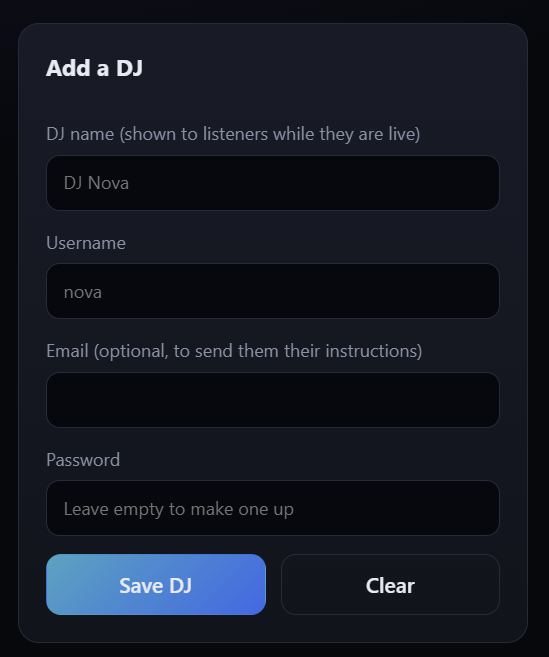
- Fill in the form on the right:
- DJ name: what listeners see while they're live, e.g. DJ Nova.
- Username: lowercase letters and digits, e.g.
nova. - Email (optional): lets you email them their instructions in one click.
- Password: leave it empty and a strong one is made up for you.
- Click Save DJ. A window opens with a ready-made message holding everything the DJ needs: address, port, mount point, username, password, audio settings and step-by-step instructions.
- Click Copy and paste it into an email, text or chat, or click Email it.
You can open that message again at any time with Instructions next to the DJ.
Managing your DJs
| Instructions | The message to send the DJ, with their login. |
| Edit | Change their DJ name, email or password. |
| Turn off / Turn on | Off: the DJ can't go live (for example between seasons). If they're on air, they're taken off within 15 seconds and the AutoDJ comes back. |
| New password | Makes up a new password; the old one stops working. Send them the new instructions. |
| Delete | Removes the DJ for good (they're taken off air if live). |
Click the dots in the Password column to show a DJ's password. Recent live shows lists who was on, when, for how long and how the show ended.

Good to know
- Keep the AutoDJ running. DJs connect through the AutoDJ, so it must be playing (press PLAY on the Dashboard). The DJs page warns you when it's stopped. It steps aside by itself when a DJ goes live.
- One DJ at a time. If a DJ is live, another DJ (or the browser DJ Studio) can't connect until they finish.
- DJs use their own port. The DJ port shown on the DJs page (your first station port + 4, e.g.
8004) is different from your listening port. Listeners keep using the usual stream links. - MP3 only. DJs should send MP3, ideally at your station's bitrate (shown on the DJs page). Your station re-encodes it either way, so listeners always get the same quality.
- Your own source password still works on the stream server itself (see Going Live with Your Own Broadcast Software), but that switches over abruptly. For a smooth fade, broadcast to the DJ port instead: use username
sourceand your source password, or simply add yourself as a DJ. - A DJ who types a wrong password many times in a row is locked out for 10 minutes.
The DJ-side instructions, with setup steps for each program, are in Broadcasting Live as a DJ: Step-by-Step Guide. Send your DJs there if they need more help.
