
The Promotion page helps new listeners find your station. You can build your own Roku TV channel and list your station on Radio Browser, a radio directory that many apps use.
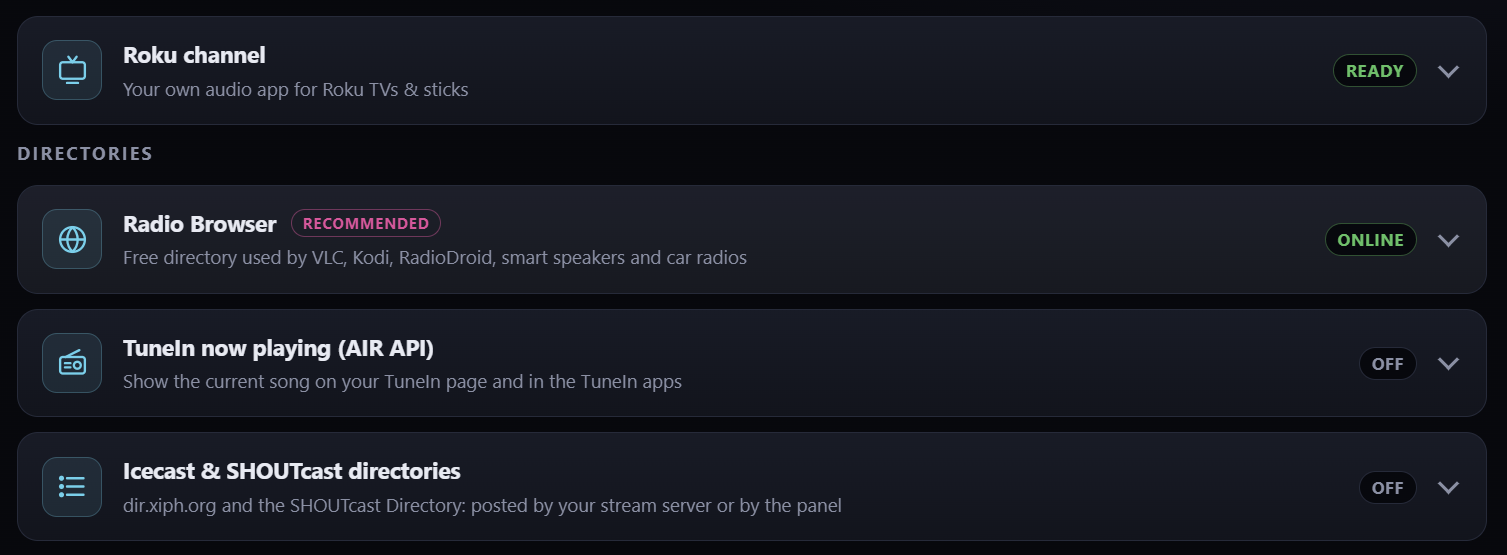
Your own Roku channel
Roku channel (under TV & apps) builds a Roku app for your station. It starts playing as soon as it opens and shows the current artist, song and album art on the TV.
- Open Promotion.
- Enter the channel name, pick colours and (optionally) upload your logo. Square PNG works best; it becomes the channel poster, the splash screen and the cover shown when a song has no album art.
- Click Download Roku package (.zip).
- On the Roku remote press Home ×3, Up ×2, Right, Left, Right, Left, Right to turn on developer mode, set a password, and let it restart.
- On a computer on the same network, open the address the Roku shows, sign in as
rokudev, choose Upload with the .zip, then Install.
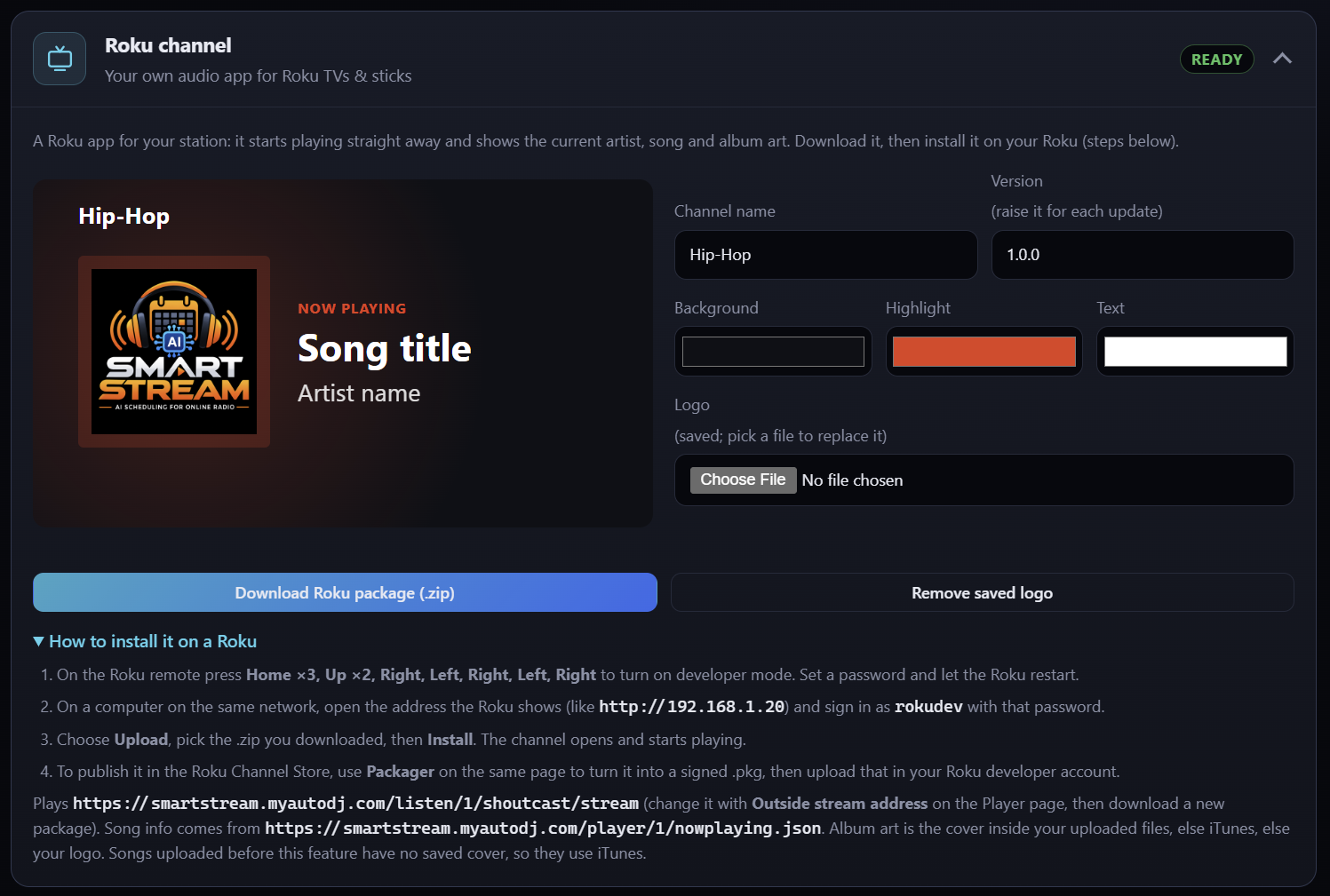
To list it in the Roku Channel Store, use Packager on that same Roku page to create a signed .pkg and upload it in your Roku developer account. Raise the Version each time you build an update.
The channel plays the same stream as your web player. If you set an Outside stream address on the Player page, download a new package afterwards.
List your station on Radio Browser
Radio Browser is a free, open directory of internet radio. VLC, Kodi, RadioDroid and many other apps, smart speakers and car radios search it.
- Open Promotion and click Radio Browser to expand it.
- Check the Station name and pick the Stream address. The https address of your own station is a good choice.
- Enter your Country as a 2-letter code (for example
US,GB,MX). If you like, also add a Region (your state or province code, for exampleTX), Languages as 3-letter codes (for exampleeng,spa), and Tags such aspop, 80s, hits. - Optionally add your Website and a Logo address (an https link to a PNG or JPG). The logo defaults to your web player cover image.
- Click Submit to Radio Browser.
The card then shows your listing: whether it is online, its votes and its clicks in the last 24 hours, plus a link to your entry on Radio Browser.
- Radio Browser checks every stream once a day. A new listing shows as online once a check passes, which can take a few hours. Keep your station on air.
- Radio Browser does not allow changes to a listing. Submit new details adds a new entry. Radio Browser removes old entries once their stream stops working.
- If your stream address is already listed, the panel links to that entry and doesn't add a copy.
To list your station in the Icecast and SHOUTcast directories as well, see Listing Your Station in the Icecast and SHOUTcast Directories.
Show the current song on TuneIn (AIR API)
Once your station is on TuneIn, the panel can send TuneIn the artist and title of every song as it starts (live DJ shows included), so your TuneIn page and the TuneIn apps show what's playing.
- Get your station listed on TuneIn first (see Manual submissions below).
- Your station ID is in your TuneIn page address: in
tunein.com/radio/My-Radio-s123456/it'ss123456. - Ask TuneIn's broadcaster support (tunein.com/broadcasters) for AIR API access to send "now playing" metadata for that station. They send you a Partner ID and a Partner key.
- On the Promotion page, open TuneIn now playing (AIR API), enter the three details, tick Send now playing to TuneIn and click Save.
- Click Send the current song now. "Accepted by TuneIn" means it works. "TuneIn refused it (403)" means one of the three details is wrong.
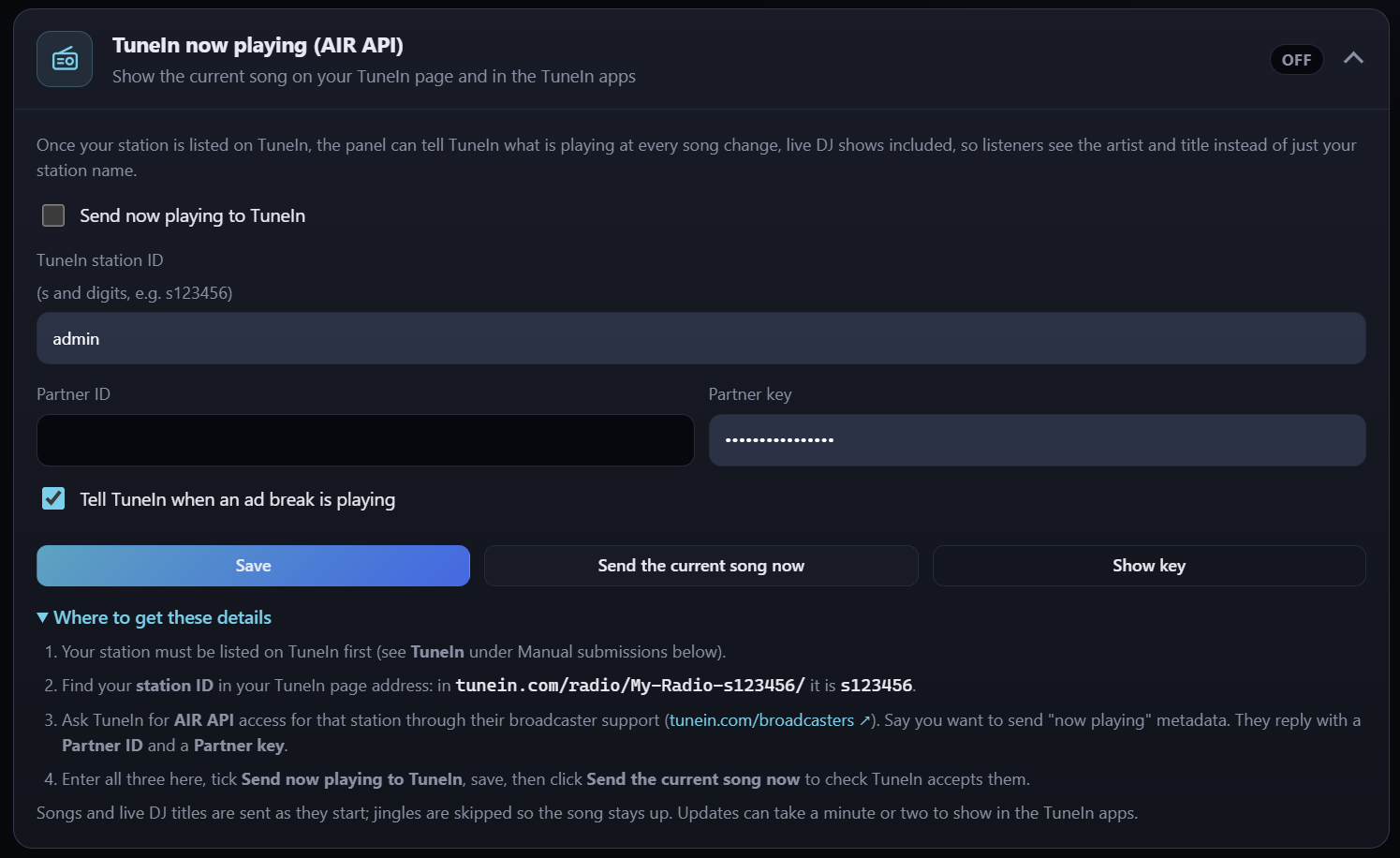
Jingles aren't sent, so the song stays on screen; ad breaks show as a commercial unless you untick that option. Changes can take a minute or two to appear in the TuneIn apps.
Manual submissions
Many popular apps and directories only accept stations through their own form. The Manual submissions section of the Promotion page lists them, each with an Open form button:
- Radio Garden: live radio on a 3D globe. It asks for your stream link and the city you broadcast from.
- iHeartRadio: apply to have your stream carried in the iHeartRadio app.
- Streema: the directory behind the Simple Radio apps.
- Online Radio Box: sign in with Google, Facebook or Apple to add your station.
- RadioFM: suggest your station for the RadioFM app.
- Internet-Radio.com: asks for your server's status page and a link to them from your website.
- TuneIn: free for stations outside the US. US stations apply through TuneIn On Air, which has a yearly fee.
- myTuner Radio: register as a broadcaster to add your station.
Open Your station details first. It has your station name, stream links, server status page, website, logo, genre and more, each with a Copy button for pasting into the forms. Genre, description and website come from your directory listing settings, and country and languages from your Radio Browser details, so fill those in first.
After you send a form, tick Submitted next to that site to keep track. Most sites review new stations by hand, which can take days or weeks.
